

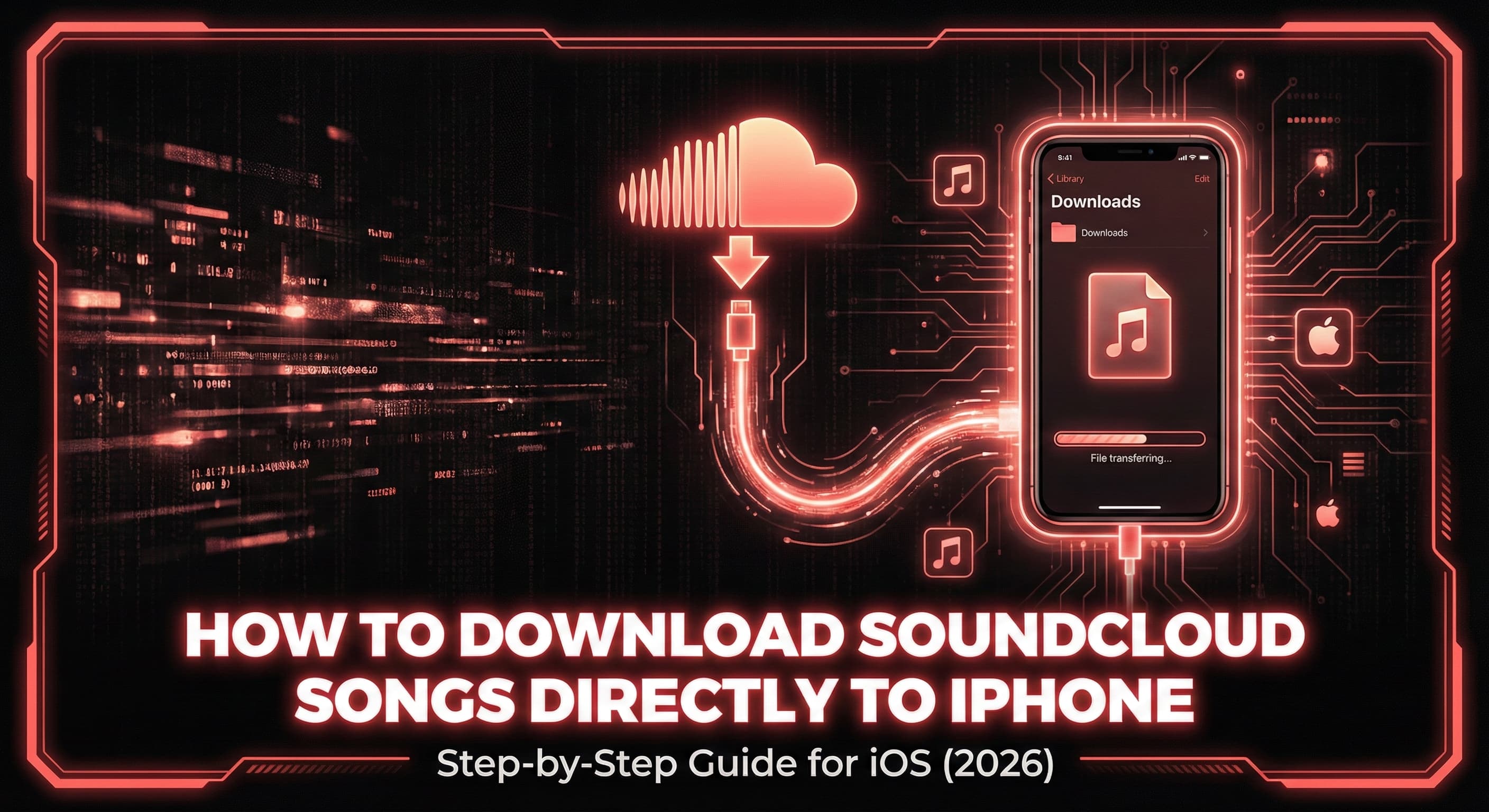
You don't need a computer to save SoundCloud tracks to your iPhone. Soundverter works in Safari on iOS, so you can paste a SoundCloud link, download the track as MP3 or high-quality audio, and save it directly to your device or add it to Apple Music. Here's how.
smartphoneUse Soundverter in Safari on iPhone
Open Safari on your iPhone and go to soundverter.com. Soundverter is a web-based tool, so there's no app to install. The site is optimized for mobile: the converter box is front and center. Make sure you're on the track's page in the SoundCloud app or in Safari, then copy the song's URL from the share menu so you can paste it into Soundverter.
Copy the SoundCloud link
In the SoundCloud app, tap Share on the track, then "Copy link". In Safari, the URL in the address bar is the link you need. Paste it into Soundverter's input field.
downloadPaste the Link and Download
On Soundverter, paste the SoundCloud URL and choose your format (MP3 is the most compatible for iPhone). Tap convert; the file will process and then download. On iOS, the file usually goes to your Downloads in the Files app, or Safari may ask where to save it. Soundverter preserves metadata and supports high-quality output so your library stays organized and sounds great.
- Paste the SoundCloud track or playlist URL into Soundverter
- Select MP3 (or FLAC/WAV if you use a compatible player) and tap Convert
- The file downloads to your iPhone; open it from Files or save to Apple Music
folderSave to Files or Apple Music
After the download finishes, find the file in the Files app under "Downloads" or "On My iPhone". You can play it from there or move it to a folder. To add it to Apple Music (and your library), use a computer with iTunes or the Apple Music app: add the file to your library and enable "Sync Library" so it appears on your iPhone. Alternatively, use third-party apps that let you import local files into your music library on device.
Downloads from Safari typically land in Files → Downloads. You can create playlists or folders and play audio with any app that supports local files.
Add the downloaded file in iTunes or Apple Music on Mac/PC, then sync your library so the track appears in the Music app on your iPhone.
tips_and_updatesTips for iOS
Keep Safari and Soundverter in focus
For the smoothest experience, stay on the Soundverter tab until the download starts. If your iPhone locks or you switch apps, the download may pause. Re-open Safari and try again. Adding Soundverter to your Home Screen (Share → Add to Home Screen) gives you a quick shortcut and can help avoid tab refreshes.